Exploring the data
You do not need an account to explore a GBIF Alert site: everything on this page works without signing in. An account adds alerts, which the next part of this guide covers.
About the screenshots
The screenshots come from the demo site, which follows a few invasive species in Belgium. Each GBIF Alert site tracks its own species and areas, and may look a little different.
The home page
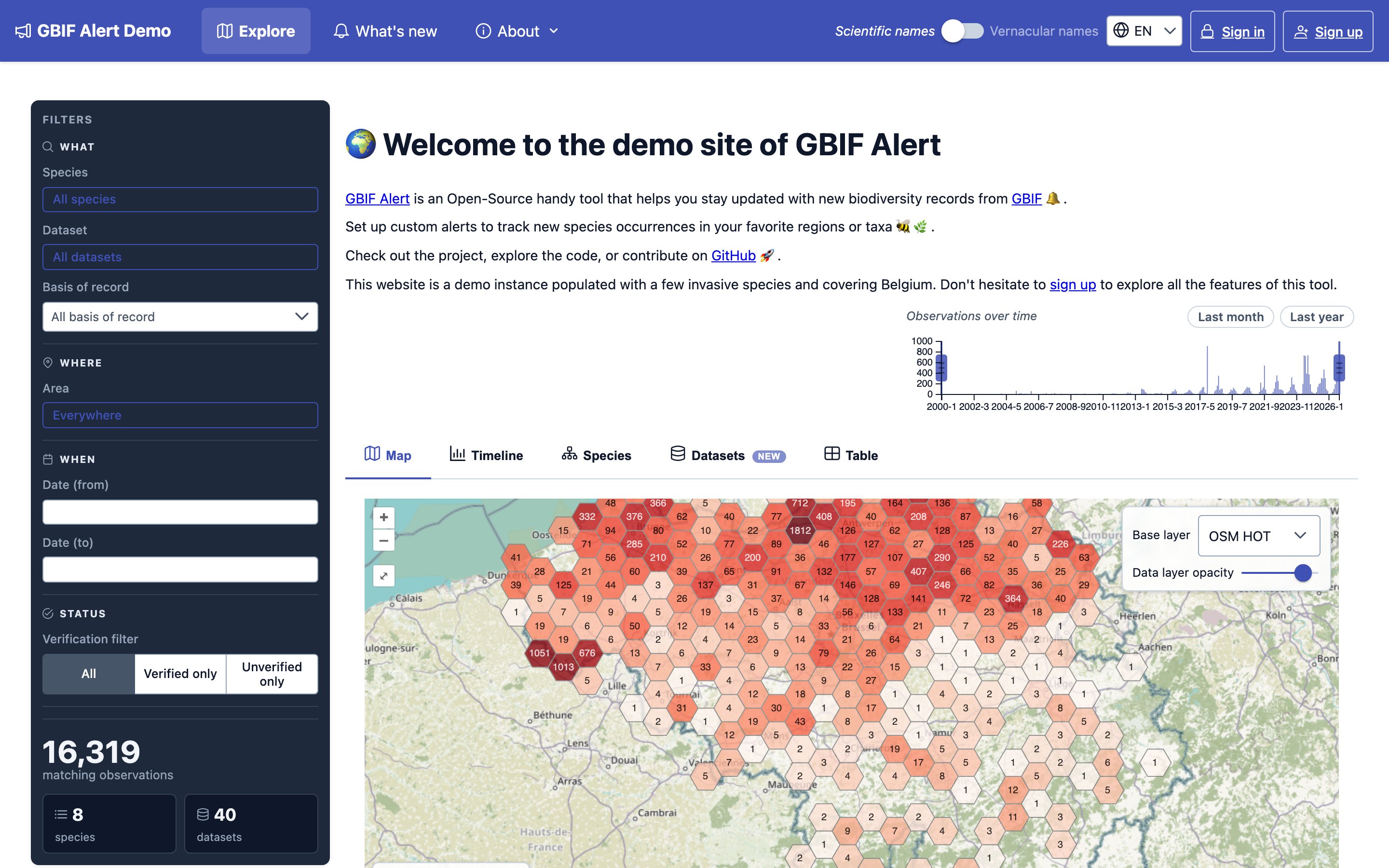
The home page has three parts:
- Filters, on the left, choose which observations you see. On a phone they are behind the Filters button.
- Observations over time, at the top, is a small chart of the matching observations per month. You can also use it to pick a period (see When).
- The results, in tabs: Map, Timeline, Species, Datasets, Table and Gallery.
At the bottom of the filters, a counter shows how many observations match, and how many species and datasets they come from. Click the species or datasets count to jump to that tab.
In the top bar:
- Scientific names / Vernacular names switches how species are named everywhere on the site.
- EN changes the language.
- About explains what the site is for (About this site) and where its data comes from (About the data). What's new has the site's news.
Filtering
Filters apply as soon as you change them. They combine: an observation is shown only if it matches every filter you set. Within a single filter, choosing several values widens it: selecting two species shows observations of either.
Active filters are listed above the results. Click the x on one to remove it, or Clear all to start over.
Share what you see
The address in your browser's address bar holds your filters. Bookmark it to come back to the same view, or send it to a colleague to show them exactly what you are looking at.
What
Species opens the list of species this site tracks. Type in the box to find one, or click a tag to show only the species that carry it. Tick the species you want to see.
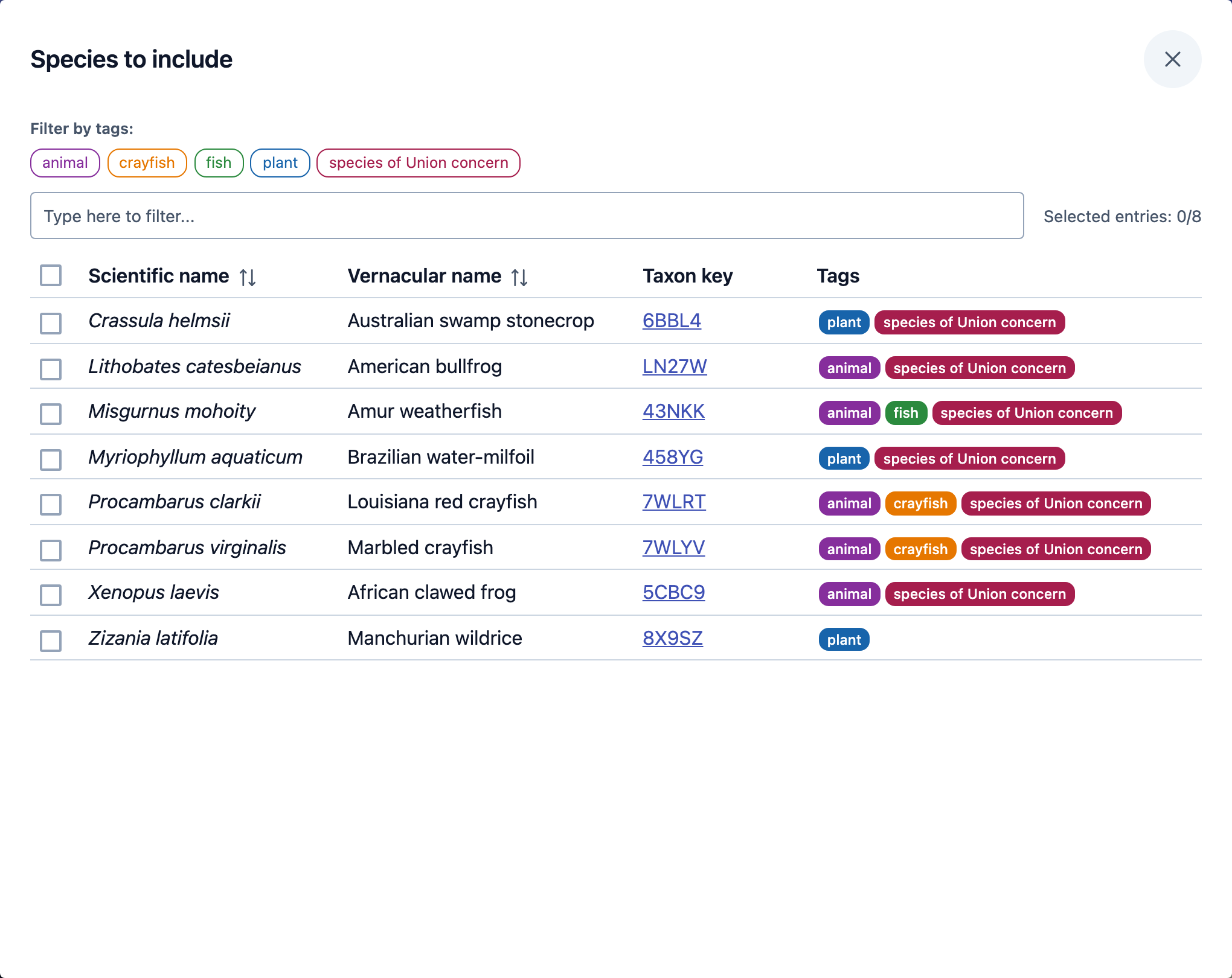
Dataset works the same way. A dataset is a collection of records published to GBIF by one organisation or project, such as a regional recording scheme or a citizen-science platform.
Basis of record is how the record was made. The most common ones are
HUMAN_OBSERVATION (someone saw the organism), MACHINE_OBSERVATION (a camera
trap or another sensor) and PRESERVED_SPECIMEN (a specimen kept in a
collection).
Where
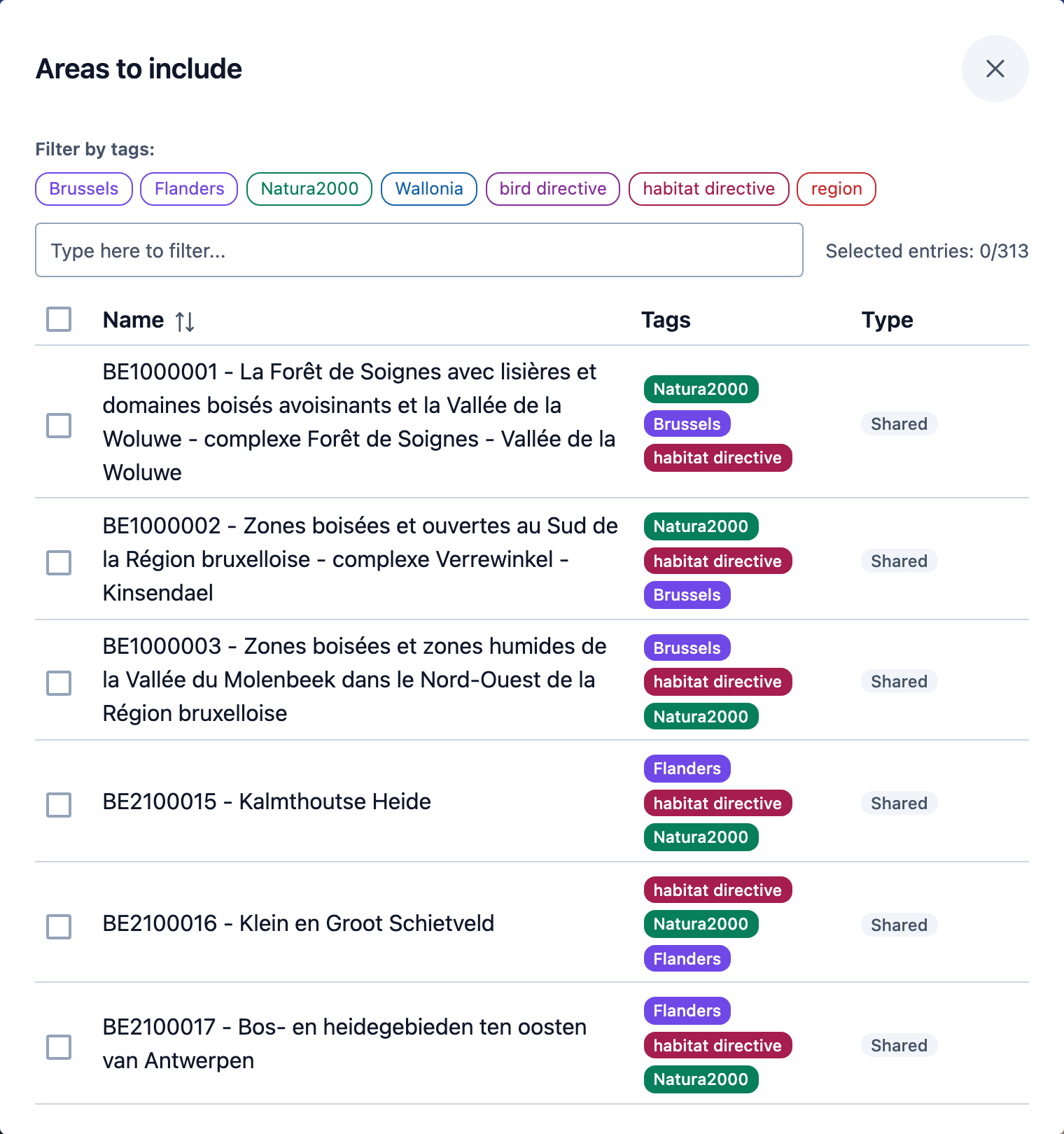
Area opens the list of areas the site's managers have made available, for example protected sites or administrative regions. It works like the species list: search, filter by tag, and tick one or more areas.
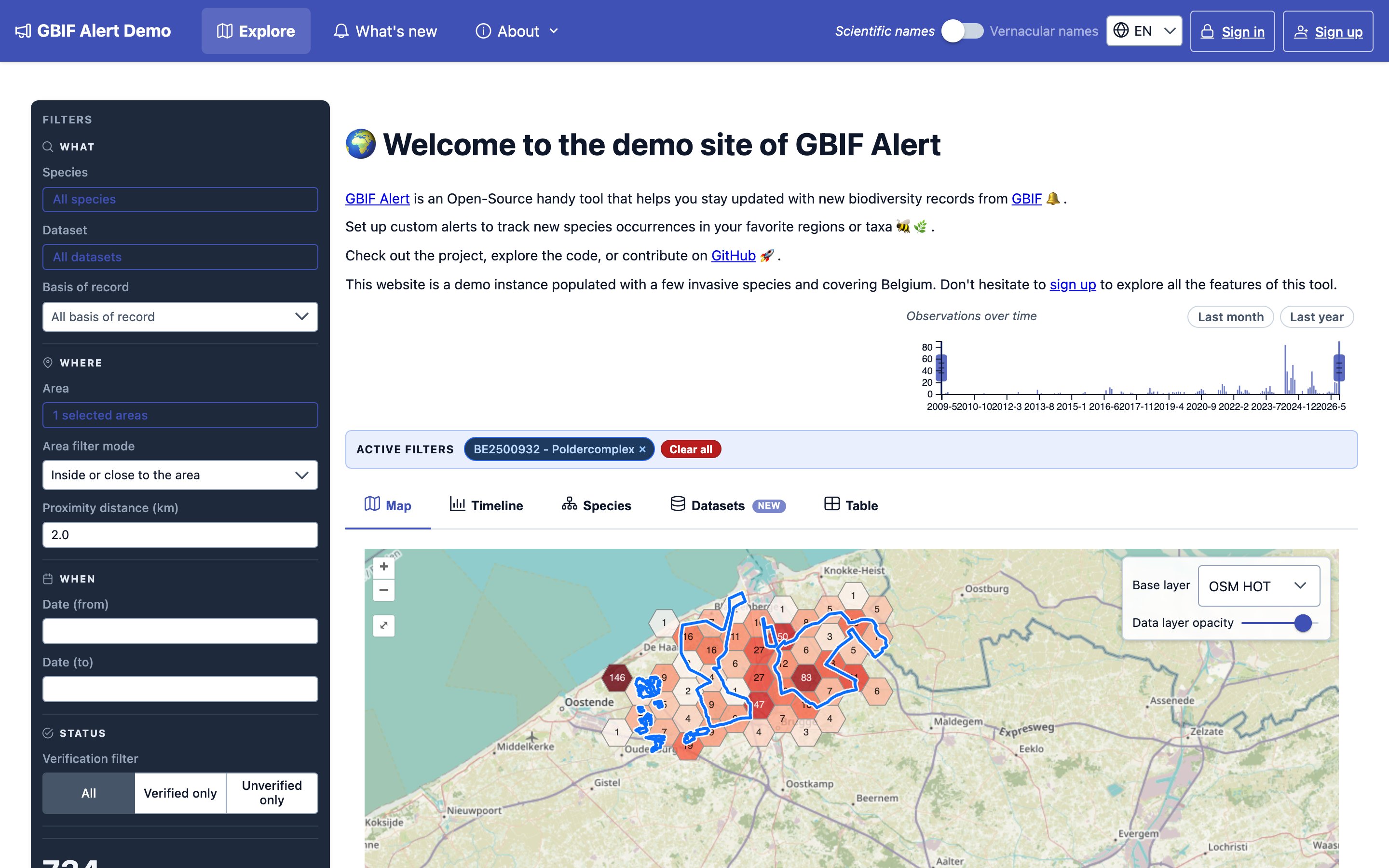
Selected areas are drawn as blue outlines on the map. Once you have chosen at least one, two more settings appear:
- Area filter mode
- Inside the area: only observations inside the areas.
- Close to the area (not inside): only observations around the areas, within the proximity distance, and not inside them. Use it to spot a species that is getting close to a site before it arrives.
- Inside or close to the area: both of the above.
- Proximity distance (km): how far around the areas to look, from 0.1 to 50 km. It starts at 5 km.
Note
Some sites start with an area already selected, so the home page opens on their region of interest. Remove it from the active filters to see everything.
When
Type dates in Date (from) and Date (to), or use the Observations over time chart: drag its left and right handles to the months you want. Dragging a handle all the way to the edge removes that limit. Last month and Last year are shortcuts for the most common periods.
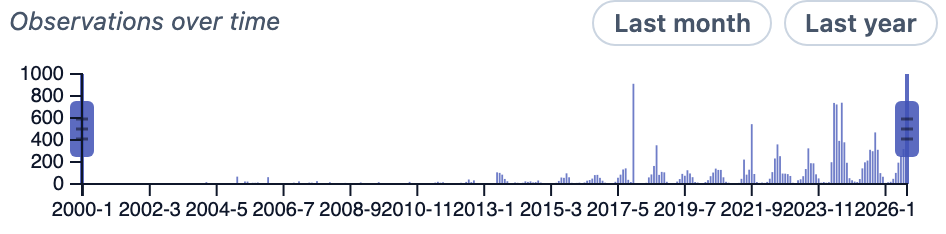
These are the dates the organisms were observed, which can be long before the records reached this site.
Status
The Verification filter shows All observations, Verified only, or Unverified only.
An observation is verified when its publisher has marked the record on GBIF as validated, usually by an expert. Records without such a mark count as unverified. The site's managers can also decide that every record from a given dataset is always, or never, verified: the observation details say so when that applies.
Unverified does not mean wrong. Many unverified records are correct, but nobody has checked them yet, and the first records of a species arriving somewhere are often in that state.
The results
Map
The map groups observations into hexagons, with the number of observations in each: the darker the hexagon, the more observations. Zoom in far enough and the hexagons give way to individual observations. Click one to see what was recorded there, and click its name to open it.
At the top right, Base layer changes the background map, and Data layer opacity makes the observations more or less transparent so the background shows through.
Timeline
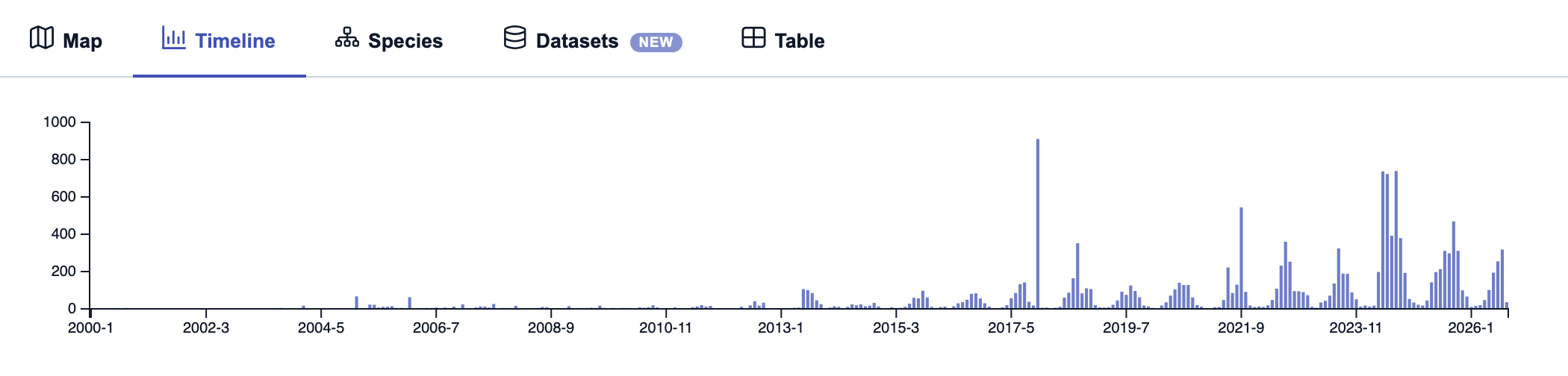
The number of matching observations per month.
Species and Datasets
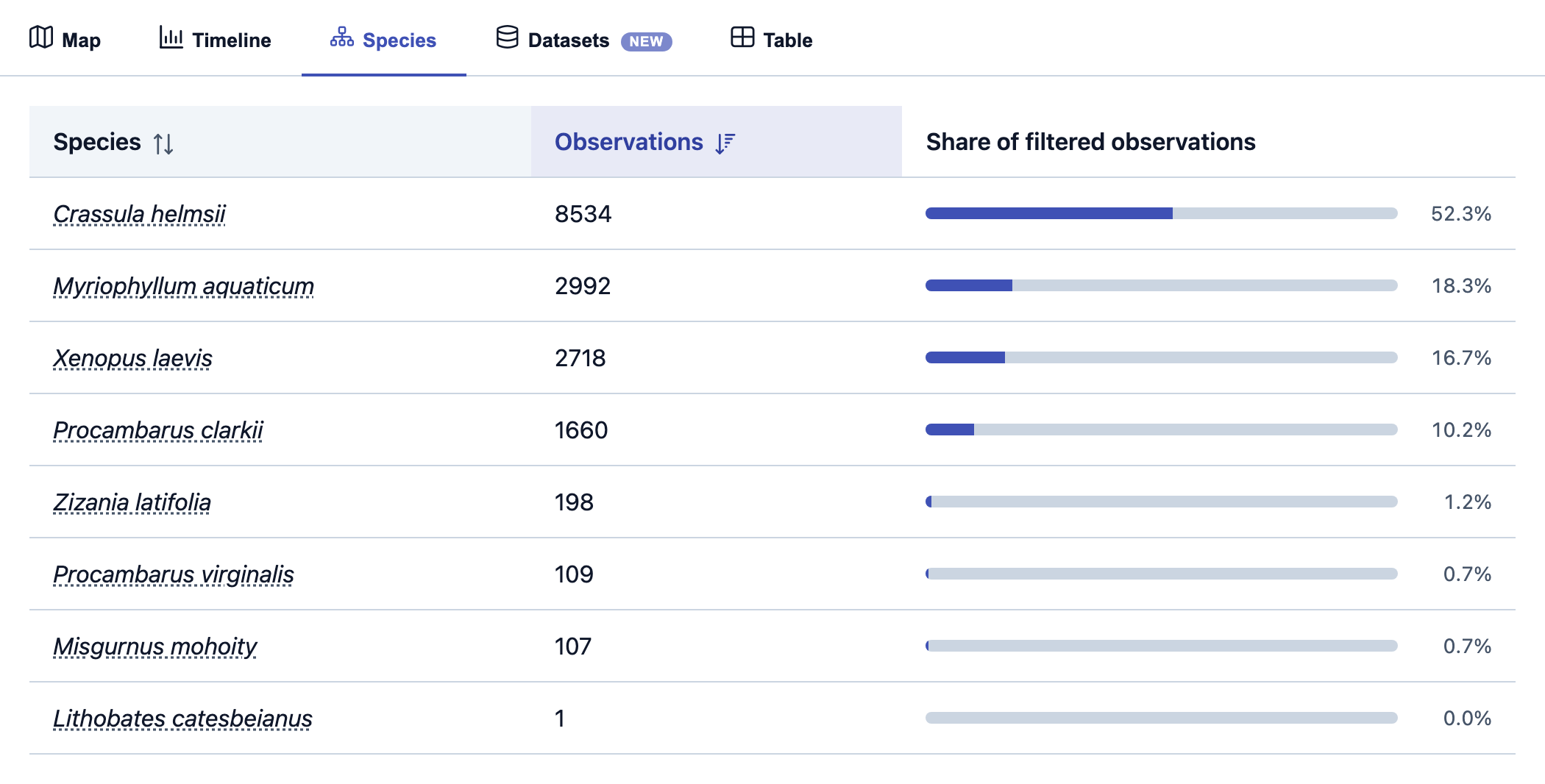
How the matching observations split between species, or between datasets, with each one's share of the total. Click a column heading to sort.
Table
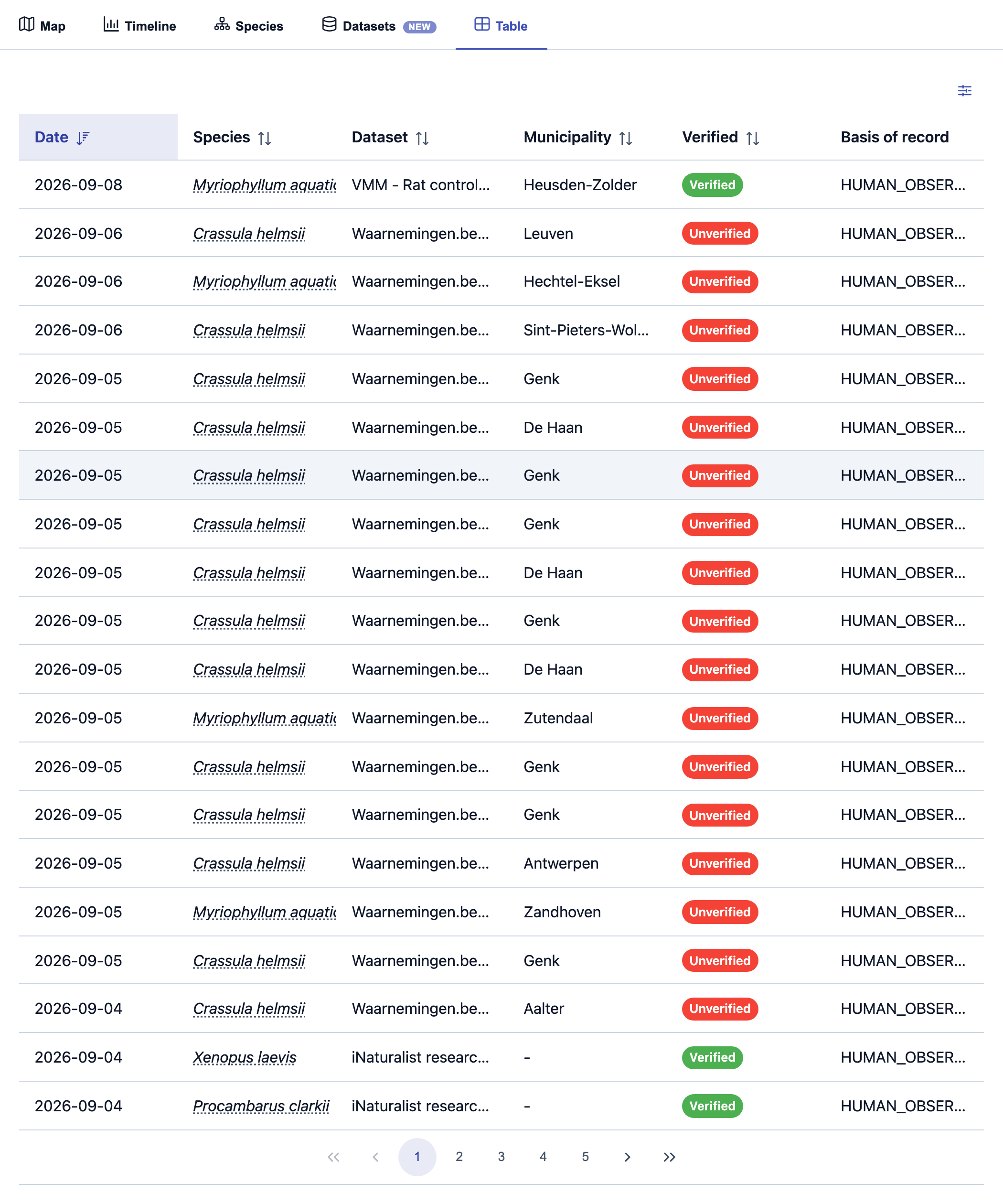
One row per observation, newest first. Click a column heading to sort by it, and use the sliders icon above the table's right-hand side to choose which columns to show.
Gallery
The photo of each matching observation that has some, newest first: observations without photos are left out. Hover a photo to see its credit, and click it to open the observation with all its photos.
Looking at one observation
Click a row in the table, a photo in the gallery, or an observation's name on the map, to open its details.
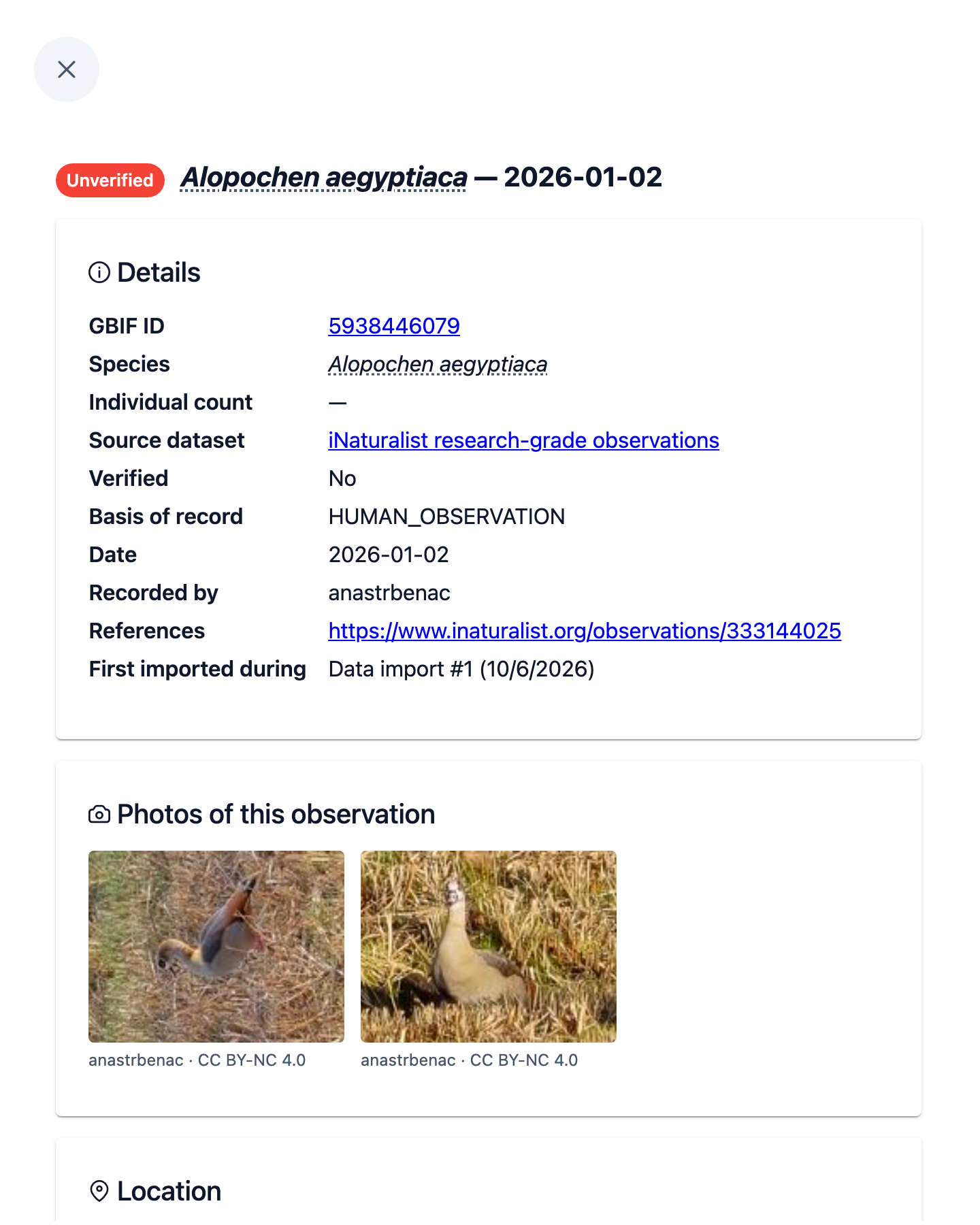
- GBIF ID links to the record on GBIF, and References, when present, to the original record on the platform that published it.
- Verified says whether the observation is verified and why (see Status).
- First imported during is when the observation first reached this site. The site downloads new data from GBIF regularly, and each download is a data import.
When the observation was published with photos, Photos of this observation shows them, each credited and linking to where it was published (the first 12; GBIF has the rest). In the results table, a camera icon marks these observations: hover it to see the photo. Hovering a species name, by contrast, always shows a generic image of the species, not of this observation.
The map under Location shows where the observation was made. The circle is how precise that location is:
- a teal circle is the precision given in the record: the organism was somewhere inside it;
- a red circle means the record does not say how precise it is, and is drawn with a 100 m radius by convention.