Going further
Ways to use a GBIF Alert site's data outside the site itself: links that open a ready-filtered view, the observations in your GIS, the original data on GBIF, and the API for scripts and applications.
Link to a filtered view
The simplest way to point someone to a selection of observations is to set the filters on the home page and copy the address from your browser (see Filtering).
You can also write such links yourself, for example to link from a website or a newsletter. On the demo site, this link opens the observations of two crayfish species in Flanders:
https://demo.gbif-alert.org/?speciesIds=3-4&areaIds=2
Species, areas and datasets are referred to by number. The easiest way to find them is to select them in the filters and look at the address. Two things to keep in mind:
- If the site starts with an area already selected, a link without
areaIdsapplies it. AddareaIds=noneto show everything. - Signed-in visitors see only the observations they have not viewed yet, unless
the link says
status=all.
The full list of parameters is in the developer notes.
Open the observations in QGIS
Every GBIF Alert site publishes its observations as a WFS (Web Feature Service), a standard way for GIS software to read map data from a website. No account is needed.
In QGIS:
- Open Layer > Add Layer > Add WFS / OGC API - Features Layer.
- Click New to add a connection. Give it a name, and as URL the site's
address followed by
/api/wfs/observations. For the demo site:https://demo.gbif-alert.org/api/wfs/observations - Click OK, then Connect, select the observation layer, and click Add.
The layer holds every observation on the site, not only the ones matching your filters on the website: filter it in QGIS instead. For a large site, tick Only request features overlapping the view extent before adding the layer, so QGIS only downloads what you are looking at.
Each observation comes with its species (scientific name, vernacular names, and
GBIF and Catalogue of Life keys), dataset, date, municipality, locality, basis of
record, recorder, individual count, coordinate uncertainty and verification
status. gbif_id is the record's number on GBIF, and stable_id opens it on the
site at /observation/<stable_id>.
The layer is live: reload it in QGIS to get the observations from the latest data import.
Get the original data from GBIF
The site builds its data from GBIF downloads, and About the data links to the GBIF download behind the latest data import. From there you can download the complete records, with every field GBIF provides, and get the citation to use if you publish work based on them.
Some records in the download are left out because the site cannot use them, for example an absence record or one without coordinates. Show details, next to the skipped observations count, lists them by reason, each linking to the record on GBIF.
Use the API
The API lets scripts and applications read the site's data, in R, Python or any
other language. Each site documents its own API: follow API at the bottom of
any page, or go to /api-docs, for an overview, rate limits and a link to the
full interactive reference (/api/v2/docs). See, for example, the
demo site's API page.
Public data, such as observations, species and areas, can be read without an account. Anything tied to your account, such as your alerts, and every change, such as creating an area, needs an API token:
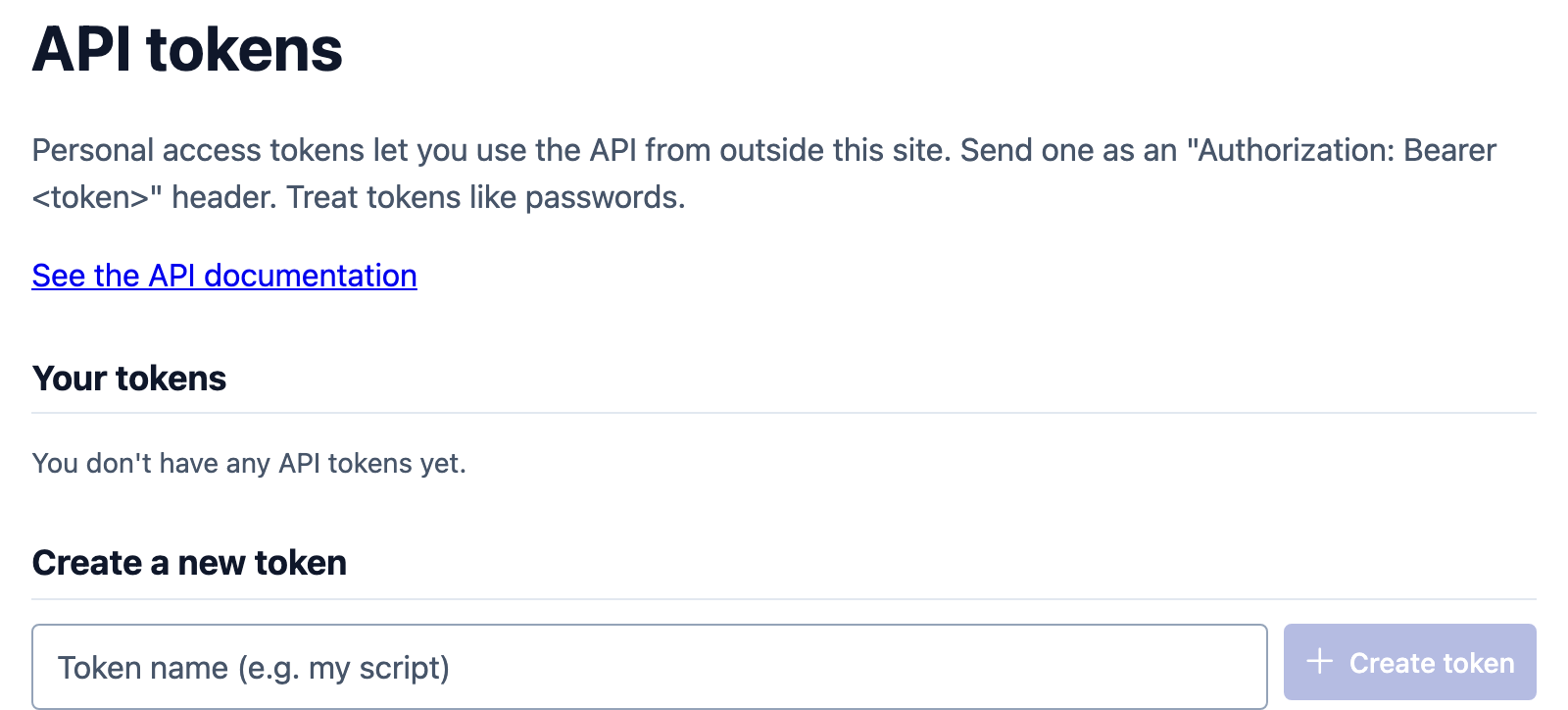
- Open API tokens from your menu.
- Give the token a name that says where you will use it, such as
my R script, and click Create token. - Copy the token straight away: the site shows it only once. The page also shows a ready-to-run command that fetches your alerts with it.
- Send the token with each request, as an
Authorization: Bearer <token>header.
Treat a token like a password. Revoke it on the same page when you no longer need it, or if you think someone else has seen it: anything using it stops working at once.