Getting alerts
With a free account, you can save what you want to follow as alerts. The site then tells you which observations are new for you, on the site and by email.
Create an account
Click Sign up in the top bar. You need a username, an email address and a password; your first and last names are optional. Then use Sign in whenever you come back.
Once you are signed in, the top bar gains My alerts, and your username opens your menu: My profile, API tokens (see Use the API), Change password, My alerts, My user-specific areas and Sign out.
Your profile
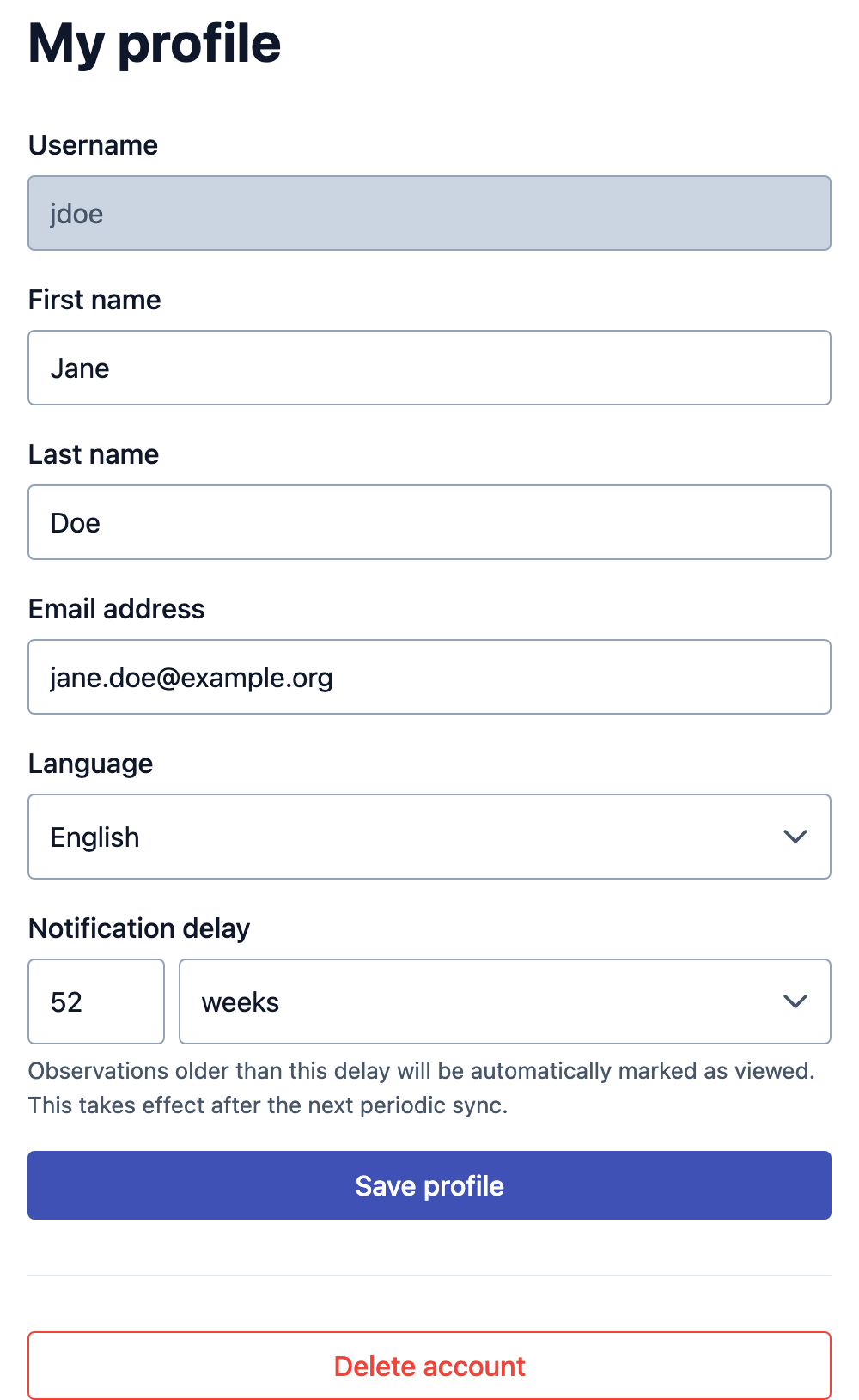
My profile holds your name, email address and Language, which is also the language of the emails the site sends you.
Notification delay decides how far back new observations still count as new for you. The site often receives old records: an observation made three years ago may only be published on GBIF today. With the default delay of one year, such an observation reaches the site without being flagged as new. Shorten the delay if you only care about recent observations, lengthen it if old records matter to you too.
Delete account removes your account and your alerts.
Viewed and not viewed
When you are signed in, the site keeps track of which observations you have already seen, for you only.
- The site downloads new data from GBIF regularly, usually every night. Each new observation that matches one of your alerts is marked Not viewed for you, unless it was observed longer ago than your notification delay.
- Opening an observation marks it Viewed. To keep it on your to-do list, click Mark this observation as not viewed in its details.
- Mark all as viewed, on an alert's page, marks every observation of that alert as viewed at once.
- A red dot next to My alerts in the top bar means at least one of your alerts has observations you have not viewed yet.
In the filters, Observation status shows All observations, only the Viewed ones, or only the Not viewed ones. When you are signed in, the home page opens on your Not viewed observations, if you have any: remove that filter from the active filters to see everything.
An alert tells you about what arrives next
When you create an alert, the observations already on the site count as viewed. From then on, every new matching observation is marked Not viewed. To look at what was there before, browse the alert's observations.
Your own areas
The areas list offers the ones the site's managers have prepared. If your site is not among them, draw it yourself: areas you create are user-specific, visible to you only, and work everywhere the shared ones do, in the filters and in alerts.
Open My user-specific areas from your menu, click Add area, then Draw on map.
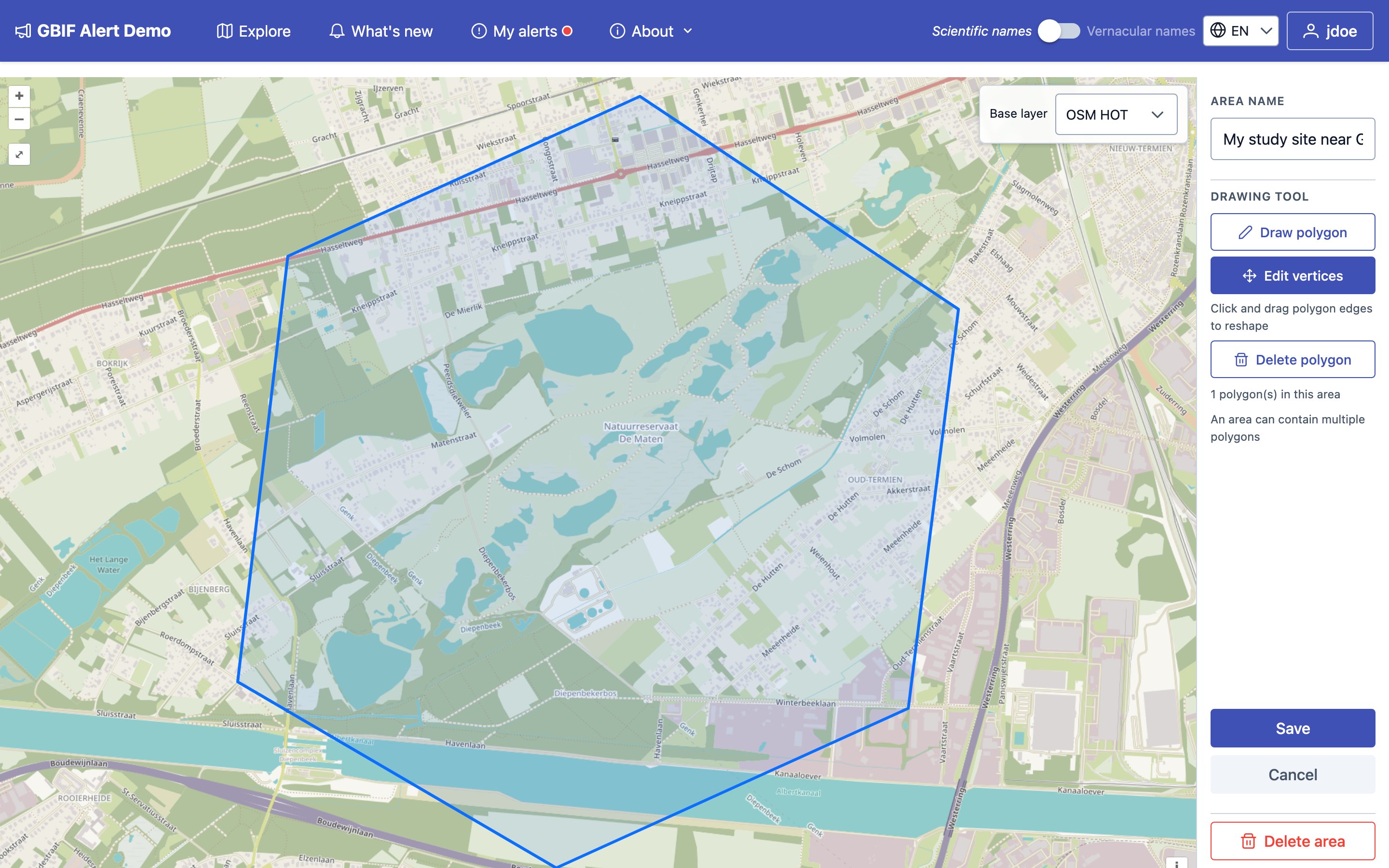
- Give the area a name.
- With Draw polygon selected, click on the map to place the corners of your area, and double-click to finish the shape. An area can contain several polygons, for example several ponds of the same reserve.
- Edit vertices lets you drag corners and edges to reshape a polygon, and Delete polygon removes one.
- Click Save.
If you already have your area's outline in a GIS, upload it instead: click Add
area, then Upload file, and pick a GeoPackage (.gpkg) file holding a
single layer with one polygon or multipolygon.
In the areas list, your own areas are marked User-specific, and the others Shared.
Create an alert
Open My alerts from your menu and click Create a new alert.
From a template
The site's managers may have prepared ready-made alerts, listed under From a template. This is the quickest way to start.
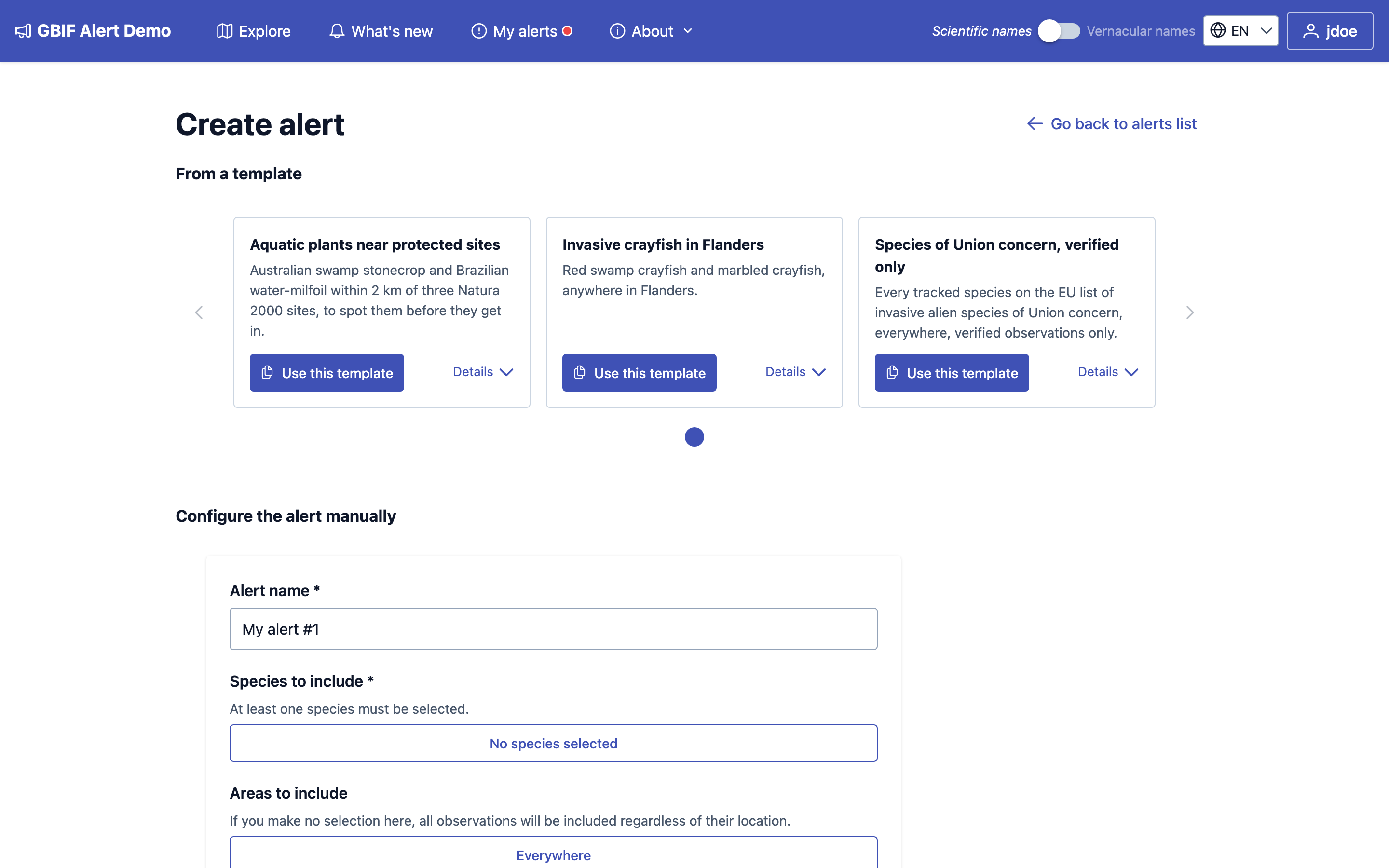
Click Use this template, give your alert a name, choose how often you want emails, and click Create alert from template. The new alert is yours: you can change any of its settings afterwards, and changes to the template later on do not affect it.
Configuring it yourself
Or fill in the form under Configure the alert manually, further down the same page.
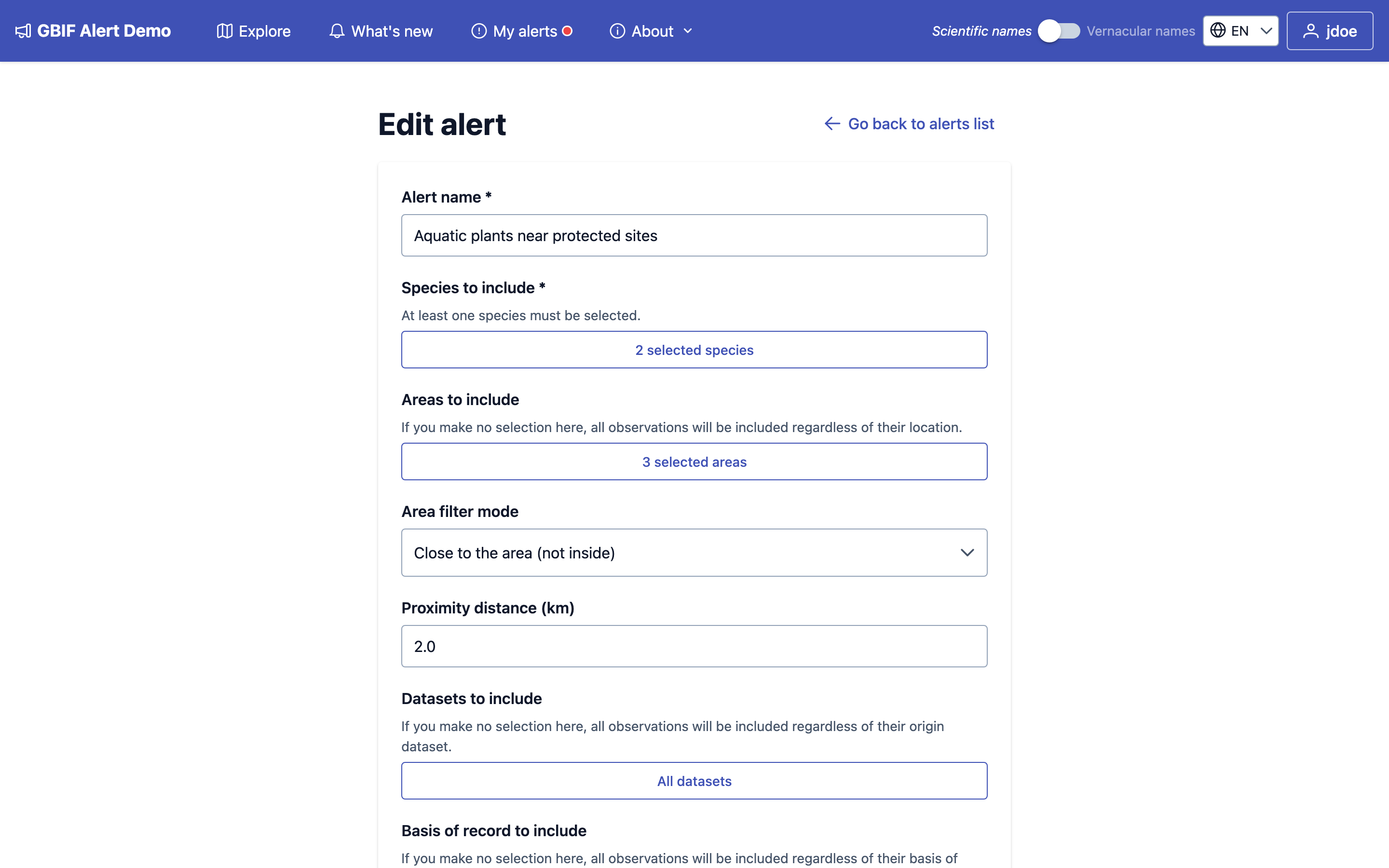
The settings are the same as the filters on the home page (see Filtering):
- Alert name: how you will recognise it in your list and in emails.
- Species to include: at least one.
- Areas to include: leave empty to follow the species everywhere. When you pick areas, choose the Area filter mode and Proximity distance (km) as on the home page.
- Datasets to include and Basis of record to include: leave empty for all of them.
- Verification filter: all observations, verified only, or unverified only.
- Alert notifications frequency: Daily, Weekly, Monthly or No emails (see Emails).
Click Create alert.
Species are listed one by one
An alert follows exactly the species you picked. If the site starts tracking a new species later, your alert does not include it until you add it. Leaving datasets empty, on the other hand, covers every dataset, including ones added later.
Follow your alerts
My alerts lists your alerts with a summary of what each one follows and when you last received an email about it.
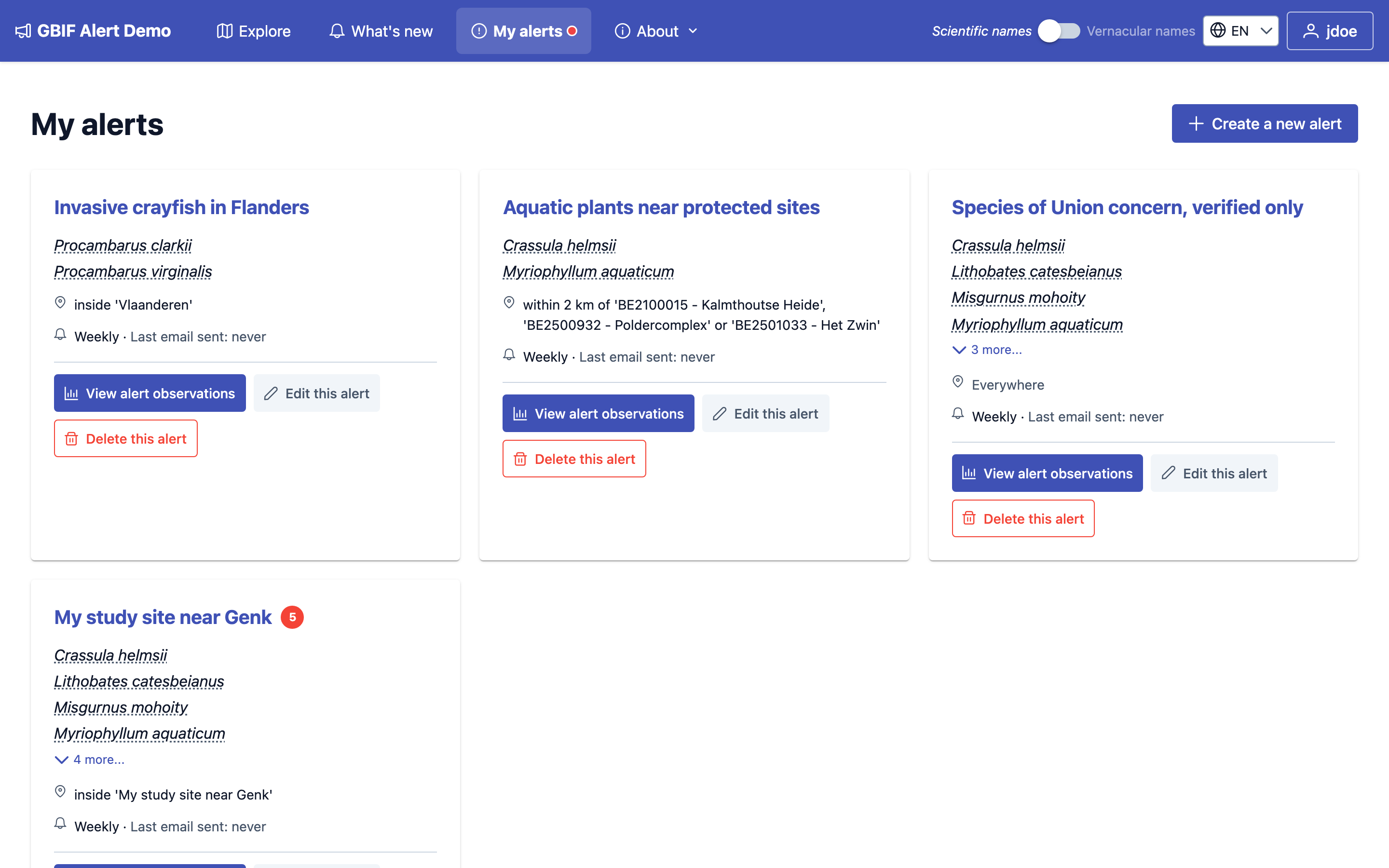
A red number next to an alert's name is how many of its observations you have not viewed yet.
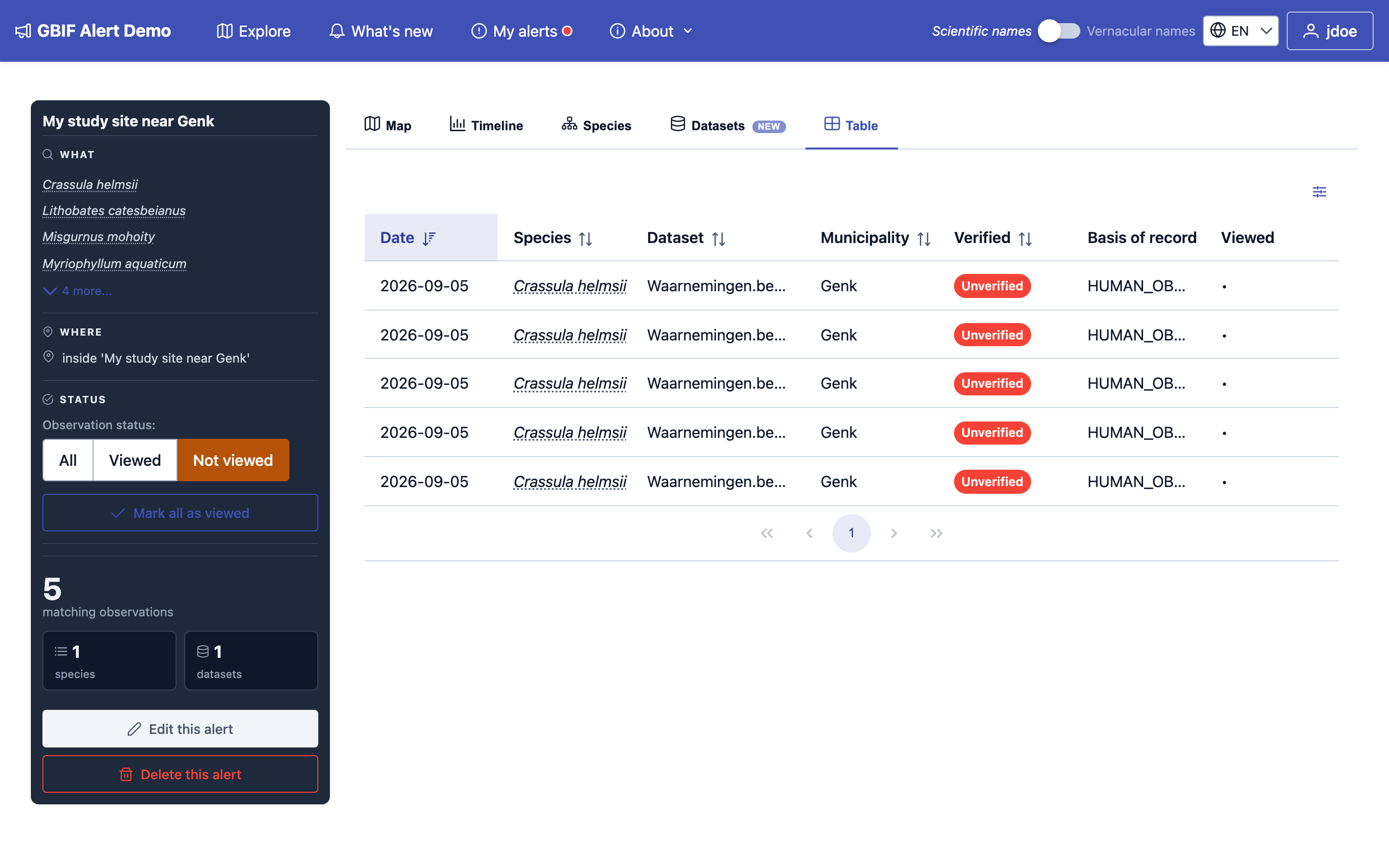
Click View alert observations to open an alert's page: its matching observations, with the same Map, Timeline, Species, Datasets and Table tabs as the home page, and a panel summarising the alert. The page opens on the observations you have not viewed yet; choose All under Observation status to see every matching observation. From there you can also Mark all as viewed, Edit this alert or Delete this alert.
Emails
When an alert has observations you have not viewed, the site emails you about them, at most once per period of the frequency you chose: at most one email a day for Daily, a week for Weekly, and so on. The first one is sent shortly after new observations arrive. With No emails, you still see your Not viewed observations on the site.
The email says how many new observations the alert has, with a sample of them: GBIF ID, coordinates, date, species and dataset. Each GBIF ID links to the observation on the site.
Comments
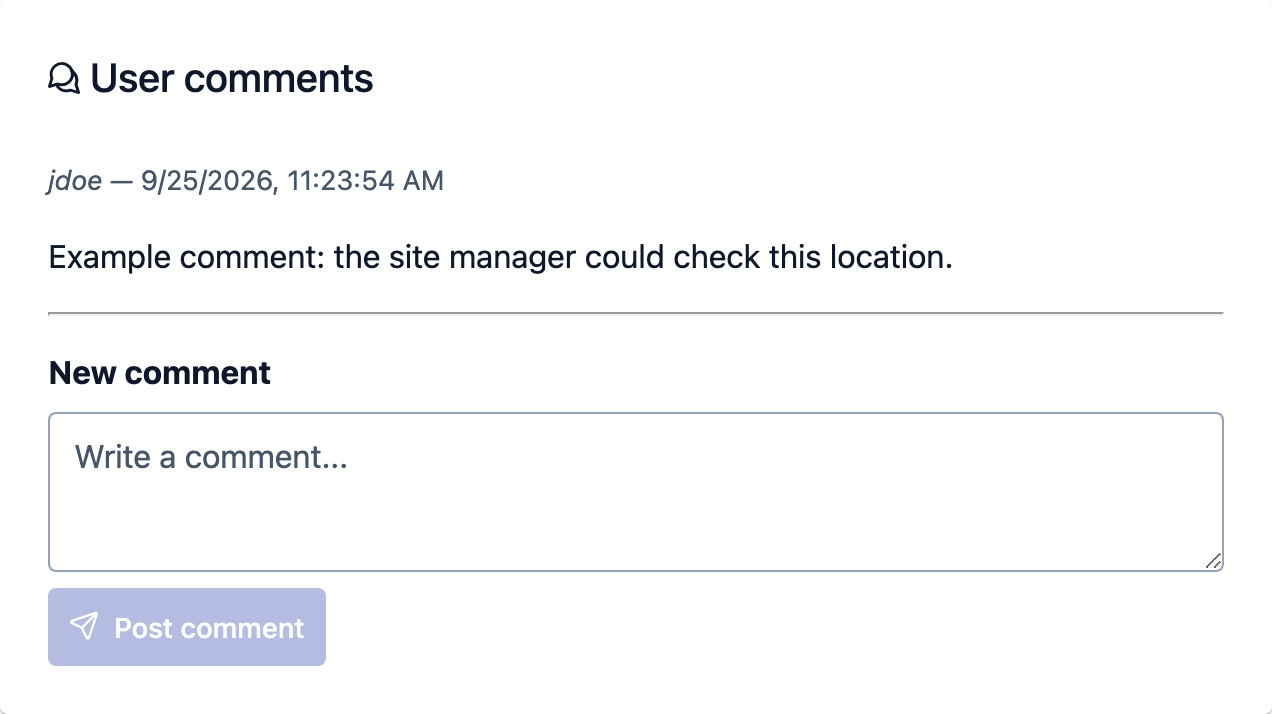
Signed-in users can comment on any observation, for example to share what they found on the ground, or to flag a doubtful identification. Comments appear at the bottom of the observation's details, under User comments, for every visitor to read.